Meta Ads Account Spending Limits: Setup, Tracking, and Team Rules
Turn the strategy into creatives
Create Meta ads for your product
Paste your product page. ADEN'S LAB turns the offer, audience, and positioning into complete ready-to-use Meta static ads.
Free to try No prompt writing

Managing your Meta Ads budget effectively is all about setting clear limits, monitoring spending, and ensuring team accountability. Here’s what you need to know:
- Account Spending Limits (ASL) cap your ad account's total spend across all campaigns. Ads pause automatically when the limit is reached.
- Campaign Spending Limits (CSL) apply to individual campaigns, ensuring specific budgets aren't exceeded.
- Lifetime and Daily Budgets help control how funds are distributed over time, with daily budgets resetting and lifetime budgets covering fixed date ranges.
- Only admins can set or adjust ASLs, and changes require manual updates once limits are reached.
- Key metrics to monitor: Amount Spent, Cost Per Result, and ASL progress.
- Team guidelines: Limit admin access, enforce budget change approvals, and set alerts for spending thresholds.
To avoid overspending, use an ad budget planner and set your ASL slightly above your planned budget (+15–25%), track spending daily with a budget calculator, and document all adjustments. Use tools like Ads Manager and automated alerts to stay informed and prevent budget overruns. This structured approach keeps your campaigns running smoothly while protecting your ad investment.
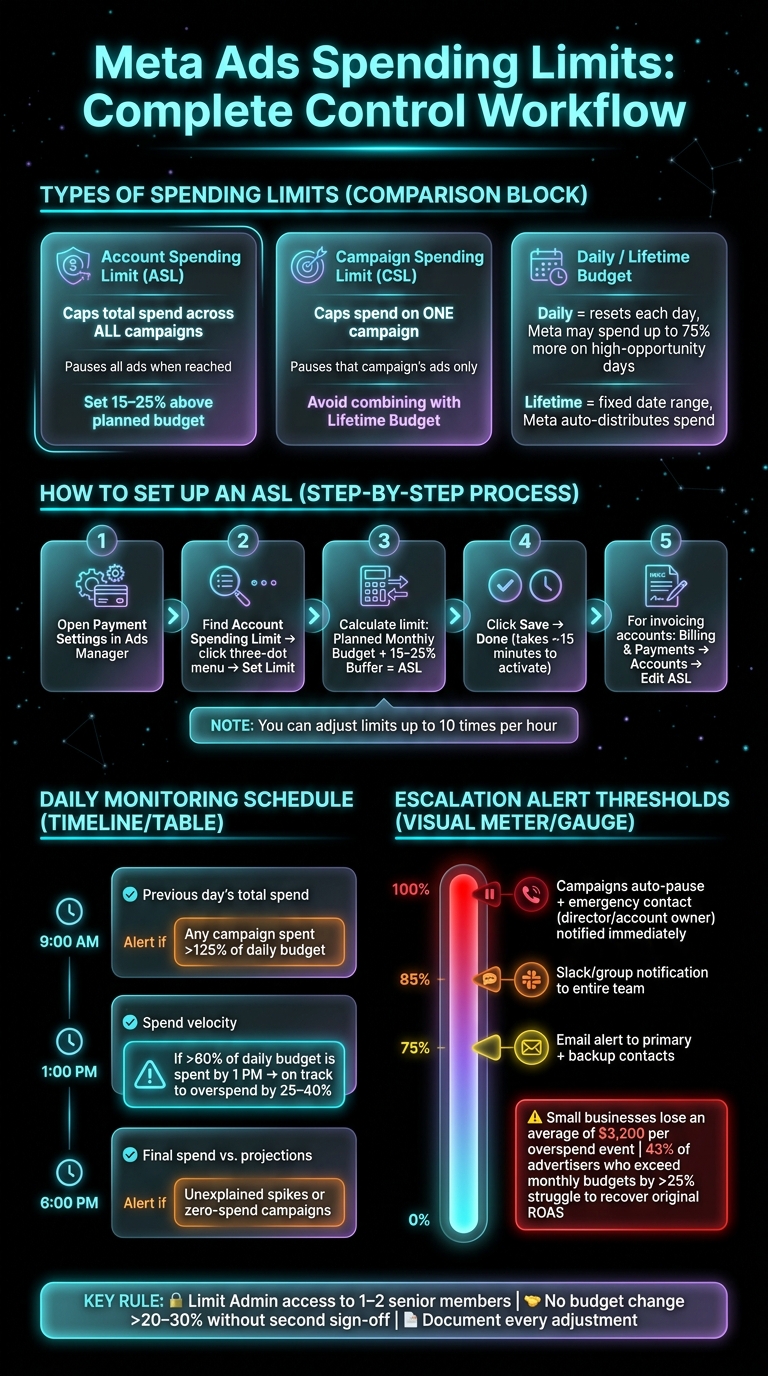
Meta Ads Spending Limits: Setup, Monitoring & Team Escalation Workflow
How to Set Account spending limit in Facebook Ads in 2026 (New Meta Update)
Put the playbook to work
Apply this playbook to your page
Paste your website and the Lab will turn the strategy you are reading into a ready-to-test ads.
Free to try No prompt writing
Types of Spending Limits in Meta Ads Accounts
Managing your Meta ad spend effectively requires understanding the tools available. Meta provides several options to control spending, each working at different levels of your account. Here's a breakdown to help you choose the right approach.
Account Spending Limits
An Account Spending Limit (ASL) sets a cumulative cap on how much your ad account can spend across all active campaigns. Once this limit is hit, all campaigns pause until you either increase the limit or reset the spent amount to $0. Think of ASLs as a financial safety net for your entire account.
To avoid interruptions, it's a good idea to set your ASL slightly above your planned monthly budget - adding a 15–25% buffer can prevent high-performing campaigns from pausing during peak times. Without this buffer, you might miss out on up to 12% of profitable conversions during busy periods.
For more precise control, consider campaign-specific limits.
Campaign Spending Limits
A Campaign Spending Limit (CSL) applies to a single campaign, pausing all associated ads and ad sets once the limit is reached - even if your account still has available budget. This is especially handy for fixed-budget promotions or A/B testing.
However, avoid combining a Campaign Spending Limit with a Lifetime Budget in the same campaign. Since a Lifetime Budget already acts as a cap, adding a CSL can unnecessarily complicate things. Also, hitting a CSL mid-campaign can disrupt Meta's learning phase, which might make it harder to regain performance once the limit is adjusted.
"A Campaign Spending Limit doesn't impact delivery... It's kind of like having a lifetime budget on top of a daily budget, except that the end is when you reach your limit - not when you reach a certain date." – Jon Loomer, Jon Loomer Digital
Next, let’s explore how Lifetime and Daily Budgets function so you can align them with your goals.
Lifetime Budgets vs. Daily Budgets
These budgeting options determine how Meta allocates your ad spend over time. Choosing the right one depends on your campaign’s structure and objectives.
| Budget Type | How It Works | Best For |
|---|---|---|
| Daily Budget | Sets an average daily spend; Meta may spend up to 75% more on high-opportunity days but keeps weekly spend within 7× the daily budget | Campaigns needing steady, daily delivery |
| Lifetime Budget | Sets a total budget over a fixed date range; Meta adjusts daily spend based on opportunities within that period | Campaigns with a fixed end date and budget |
Each budget type serves a specific purpose, so understanding their differences can help you make smarter decisions for your campaigns.
How to Set Up Account Spending Limits: Step-by-Step
What You Need Before Setting Spending Limits
Before you begin, make sure you have admin-level access - only admins can set, change, or remove spending limits. If your account uses monthly invoicing, you'll also need "Full Control" of the business portfolio or "Manage Finance" access.
Spending limits aren't available for accounts using prepaid funds. Additionally, any limit you set must exceed the amount your account has already spent. Meta typically requires the new limit to be at least 10% higher than your current spend. So, plan your spending threshold in advance.
Once you’ve confirmed access and determined your threshold, you’re ready to set up your limit in Ads Manager.
How to Configure Spending Limits in Ads Manager
- Open Payment Settings in Ads Manager.
- Locate the Account Spending Limit section and click the three-dot menu.
- Choose Set Limit.
- Input your desired limit. A good rule of thumb is to add a buffer: Planned Monthly Budget + 15–25% Buffer = Account Spending Limit.
- Click Save, then Done.
For accounts with monthly invoicing, go to Billing & Payments → Accounts, select your ad account, click the edit icon next to Account Spending Limit, enter your desired amount, and click Save.
Once saved, changes typically take about 15 minutes to go into effect.
"An account spending limit is an optional setting that lets you set a maximum amount that your ad account can spend across all campaigns." - Meta Business Help Center
Meta also provides a safeguard to prevent errors: if you input a limit significantly higher than your usual spend, you’ll receive a warning. To further protect your investment, you can use AI tools for Meta ads to monitor performance and stop wasting budget.
After setting your limit, you’ll need to monitor and adjust it as described in the next section.
How to Update and Manage Spending Limits
Once your spending limit is configured, you can manage it using these options:
| Action | What It Does | Best For |
|---|---|---|
| Change the Limit | Increases the total lifetime cap | Scaling up with AI budget allocation or permanent budget increases |
| Remove the Limit | Eliminates all spending caps | Accounts with variable or uncapped budgets |
| Reset the Amount Spent | Resets the counter to $0 | Monthly budget cycles or new campaigns |
For recurring budgets, resetting the amount spent is a great option. This allows you to maintain the same cap while restarting the counter at the beginning of each billing cycle.
Here are a few additional tips to keep in mind:
- You can adjust limits up to 10 times per hour. If you exceed this, Meta may delay updates for review.
- Meta tracks spending in Pacific Standard Time (PST), so align your reports accordingly.
- To see a detailed history of limit changes, go to Billing → Transactions in Ads Manager.
How to Monitor and Track Ad Spend
Once you've set spending limits, the next step is keeping a close eye on how your budget is being used. Meta Ads Manager offers several tools to help you stay in control.
Key Metrics to Monitor
There are three metrics you should prioritize for effective budget tracking: Amount Spent, Cost Per Result, and Account Spending Limit (ASL) progress.
- Amount Spent reflects the total charges for a campaign, ad set, or individual ad throughout its run.
- Cost Per Result can highlight inefficiencies; if this number increases, it might signal audience fatigue or that your ad creative needs refreshing, or explore Meta ad optimization for more solutions.
- ASL progress, found in the Account Overview, shows how much of your lifetime spending cap has been used.
Another important factor is spend velocity, or how quickly your budget is being used (dollars per hour). Keep in mind that Meta can exceed your daily budget by up to 25% on days it identifies as high-opportunity. If your campaign is burning through its budget too quickly - like by midday - it’s a red flag that requires immediate attention.
For deeper insights, you can also analyze spend breakdowns.
Tracking Spend at Different Levels
Ads Manager makes it easy to track spending across campaigns, ad sets, and individual ads. Navigate through the Campaigns, Ad Sets, and Ads tabs to get a clear view of your performance. To customize your data, go to Columns → Customize Columns and add fields like "Amount Spent", "Cost Per Result", and "Remaining Budget".
The Breakdown menu provides even more detail. You can analyze spend by delivery metrics (like age group, placement, or device), action types, or time periods (day or hour). This level of granularity helps identify which audience segment or placement is consuming more of your budget than expected.
For a quick visual snapshot, use the Insights Side Pane. Select any campaign or ad set to see spend and performance trends displayed in a simple chart format. This is handy for spotting sudden changes without needing to generate a full report.
These tools provide the groundwork for creating detailed reports that help you manage spending proactively.
Using Reports to Stay Ahead of Overspending
The Ads Reporting tool is your best friend for moving from reactive tracking to proactive budget management. You can create custom reports or use pre-built templates to monitor spending trends over time. Even better, you can schedule these reports to be sent directly to your inbox to keep you informed without extra effort.
Here’s how to use Meta Ads Manager’s tools effectively:
- Check the Account Overview for ASL alerts.
- Use Ads Manager for real-time tracking.
- Leverage Ads Reporting for spotting trends.
- Review Billing & Payments for transaction history.
- Consult the Insights Pane for quick performance visuals.
To prevent overspending, configure alerts to notify you at key thresholds - like an email at 75%, an SMS at 85%, and a Slack notification at 95% of your limit.
Finally, for verifying charges, head to the Billing & Payments section. This area provides a detailed transaction history, along with records of when spending limits were set, adjusted, or reset.
Team Rules for Budget Management
Managing a budget isn't just about tracking numbers - it’s about ensuring everyone on the team knows their role and follows clear procedures. When unexpected issues arise, having well-defined rules ensures that spending stays under control.
Roles, Permissions, and Access Levels
Only Admins should have the ability to manage Account Spending Limits. To keep things secure, limit Admin access to one or two senior team members. Other team members should stick to roles like Advertiser or Analyst, which allow them to manage campaigns and generate reports without altering critical financial settings. This setup not only reduces the risk of accidental changes but also creates a clear chain of responsibility.
Approval Processes and Budget Change Rules
Budget adjustments should never be made on a whim. Any increase must go through a documented approval process. A good rule of thumb? No one should adjust a campaign budget by more than 20–30% without getting a second sign-off from the account manager or team lead. For changes to Account Spending Limits, require written approval that records both the reason for the change and the person who approved it. Keep in mind that changes might take a short time to take effect, so plan accordingly.
Daily Reviews and Escalation Steps
Regular daily checks are essential for spotting issues before they spiral out of control. Here’s a simple schedule to follow:
| Time | Check | Alert When... |
|---|---|---|
| 9:00 AM | Previous day's total spend | Any campaign spent >125% of its daily budget |
| 1:00 PM | Spend velocity | More than 60% of the daily budget is used |
| 6:00 PM | Final spend vs. projections | Unexplained spikes or zero-spend campaigns |
To prevent these spikes and ensure consistent delivery, many teams implement ad scheduling strategies to control when budgets are deployed.
When problems arise, use a tiered escalation process based on spending thresholds. For example:
- At 75% of the Account Spending Limit, send an email to both primary and backup contacts.
- At 85%, add an SMS alert for the account manager.
- At 95%, notify the entire team via Slack or another group communication tool.
- If spending hits 100%, campaigns should pause using Meta ads automation, and an emergency contact - usually a director or account owner - must be notified immediately.
This structured approach ensures issues are addressed promptly. It’s worth noting that budget overspend incidents can be costly. Industry data from 2026 shows that small businesses lose an average of $3,200 per overspend event. Worse, 43% of advertisers who exceed their monthly budgets by more than 25% struggle to recover their original return on ad spend (ROAS).
A Practical Workflow to Prevent Overspending
To keep your Meta Ads spending in check, adopt a workflow that combines setting limits, monitoring for anomalies, and making timely budget adjustments. This approach builds on earlier advice about configuring spending limits and keeping an eye on performance metrics.
Setting and Reviewing Spending Limits
Start by using your planned monthly budget, adding a 15–25% buffer, to establish your Account Spending Limit (ASL). Make it a habit to review and update your ASL at the beginning of each month. This ensures it reflects your current business priorities. Keep in mind, though, that any new limit must exceed your current spend, and changes won’t take effect immediately.
Regularly revisiting your ASL helps ensure it stays aligned with your business goals as they evolve.
Spotting and Responding to Spend Anomalies
The quickest way to detect overspending is by keeping an eye on spend velocity - basically, how fast your budget is being used throughout the day. A handy rule of thumb: if more than 60% of your daily budget is spent by 1:00 PM, you’re likely on track to overspend by 25–40% by the end of the day.
Watch for campaigns that exceed 125% of their daily budget or ad sets with a cost per result that’s 150% above their typical average. For more extreme cases, set up automated rules to pause campaigns that burn through more than 300% of their daily budget in just four hours. Since Meta can spend up to 25% over your daily budget on high-opportunity days, these automated safeguards are essential - not just a nice-to-have.
When you spot anomalies, act quickly to adjust budgets and make sure to document all changes.
Adjusting Budgets and Documenting Changes
Every time you tweak a budget, write down why - whether it’s due to a sudden traffic surge, a product launch, or a shift in bidding strategy. This documentation is key for your team to distinguish between a smart adjustment and a potential oversight when reviewing variances at the end of the month.
Use the Account Spending Limit history in the Billing section of Ads Manager to review past changes, including who made them and when. Combine this with a weekly reconciliation of your bank or credit card charges against Meta’s reported spend. Investigate any discrepancies greater than 2% to catch billing errors before they snowball into bigger issues.
"Ryze AI's automated budget controls eliminated our overspend incidents completely. We went from 3–4 budget overruns per quarter to zero, while our ROAS improved 31% through better budget allocation." - Sarah K., Paid Media Manager, E-commerce Agency
Conclusion: Keeping Control of Your Meta Ads Spend
Managing your Meta Ads spend effectively comes down to three core practices: setting the right limits, keeping a close eye on performance, and establishing clear team processes. Your Account Spending Limit serves as a crucial safety net against overspending - especially when set slightly above your planned budget. However, if this buffer is too tight, even your best campaigns could fall short of their potential.
Regular tracking is non-negotiable. Multi-tiered tracking systems help prevent overspending from snowballing, while disciplined monitoring keeps budget overruns in check. Limiting account changes to Admins and following well-defined alert protocols can further protect your campaigns. Considering that 73% of Meta ad account suspensions are tied to billing issues, having backup payment methods in place can significantly reduce the risk of interruptions.
These strategies are straightforward but require consistent effort. A spending limit that isn’t reviewed, alerts that go ignored, or a team without a clear approval process can all lead to costly errors. Treat your Meta Ads budget with the same care and attention as any other critical business expense. By sticking to these practical steps, you'll maintain better control over your campaigns and safeguard your financial investment. To maximize that investment, you can also automate your Meta ad production to scale creative output efficiently.
FAQs
What happens to my ads when the Account Spending Limit is reached?
When your Account Spending Limit is reached, all active campaigns will pause spending, and ad delivery will stop - even though the campaigns will still show as being in a "delivering" status. To get things running again, you can either increase or remove the limit, or reset the spent amount back to $0.00. Once you save the changes in your payment settings, it usually takes about 15 minutes for them to take effect.
How do I choose between a daily budget and a lifetime budget?
Choose a daily budget if you prefer steady daily spending and more predictable outcomes. While Meta might spend up to 75% more on days with higher potential, your weekly spending will never exceed 7 times your set daily amount. On the other hand, go for a lifetime budget if you have a specific total amount allocated for a campaign with fixed start and end dates. This gives Meta the flexibility to adjust daily spending while ensuring your total budget is never exceeded.
What alerts and approval rules should my team use to prevent overspending?
To keep your spending in check, set clear limits both at the account and campaign levels. Make sure to enable email alerts for when you hit 75% and 85% of your account budget. Send these alerts to both a primary and backup contact to avoid missing critical updates. For high-volume accounts, use a real-time dashboard to track spending, especially since Meta can exceed daily budgets by up to 25% during traffic surges. To stay on top of things, reconcile your spending weekly by comparing Meta's spend reports with your bank or credit card statements.
Your next ad batch starts here
Finish with a ready-to-test ad batch
Paste your website to generate static creatives. Drop the link → get ads in about 90 seconds → upload them to Meta → scale.
Free to try No prompt writing